Record a single photographed state or compare genuine before-and-after states of the same subject. Separate visible details from unknowns and preserve image proportions.
ACTUAL FINISHED RESULT
Chair photo condition record · observation exercise
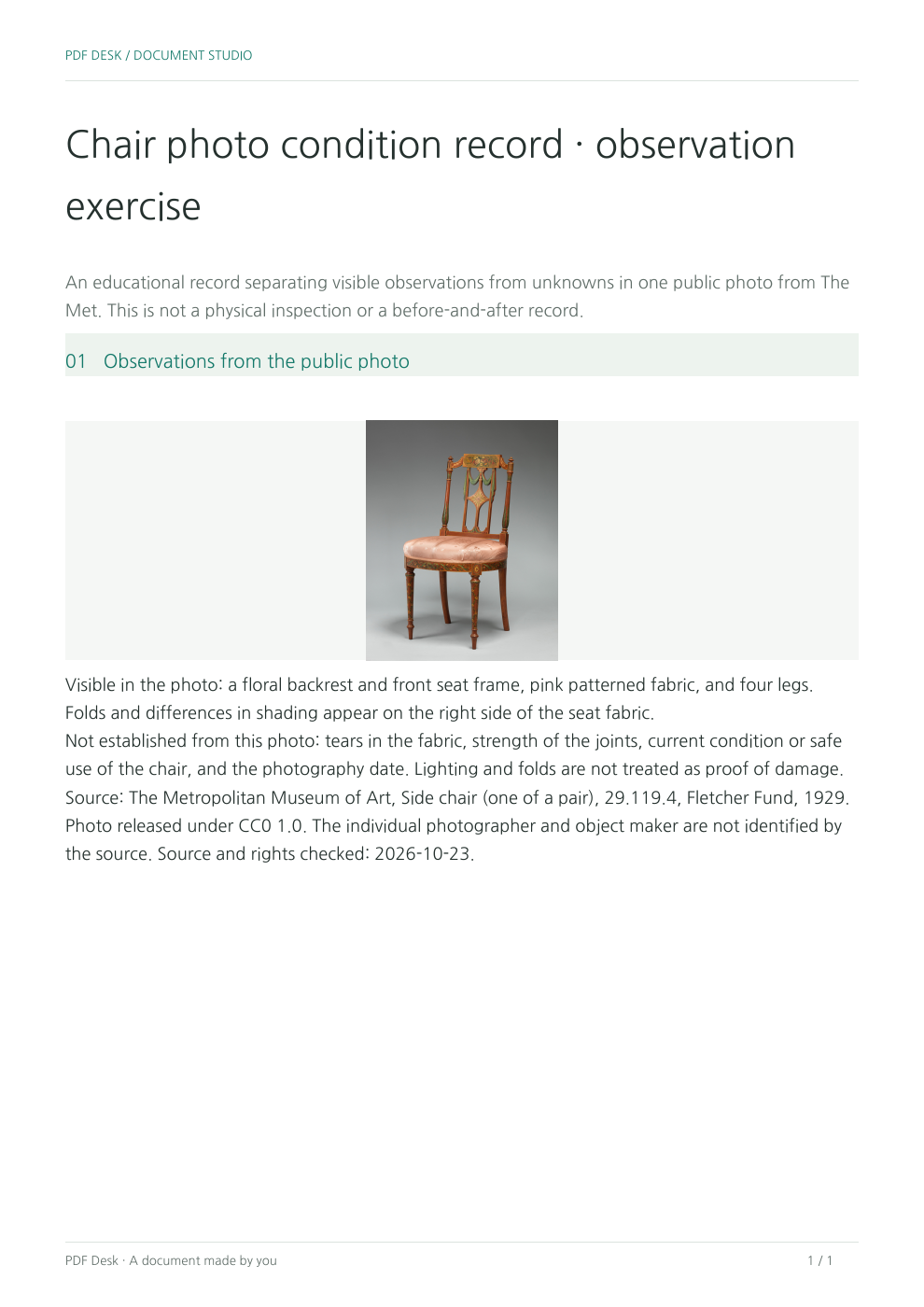
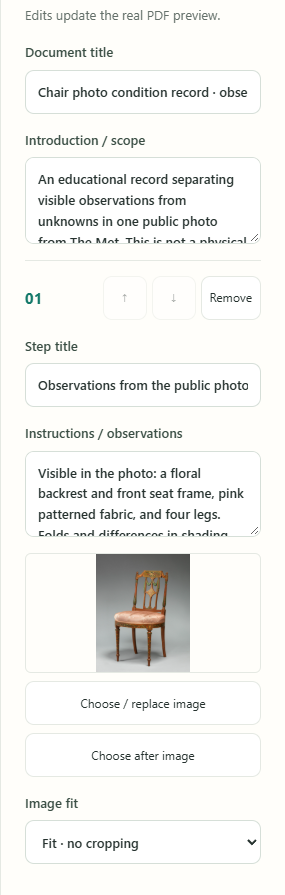
An educational record separating visible observations from unknowns in one public photo from The Met. This is not a physical inspection or a before-and-after record.
When to use it
Use it to describe an item when receiving, returning or storing it. Use one image for a single state, or two only for a genuine before/after relationship.
Find each numbered area, then compare it with the matching description. This is a single-state observation exercise; information the photograph cannot establish remains unverified.
An educational example using a museum archival photo, not a current inspection, appraisal, or safety assessment. The image is not presented as a before-and-after comparison.
Numbers and arrows are a separate explanatory layer identifying observation locations. They have not been added to the original photo or downloadable documents.
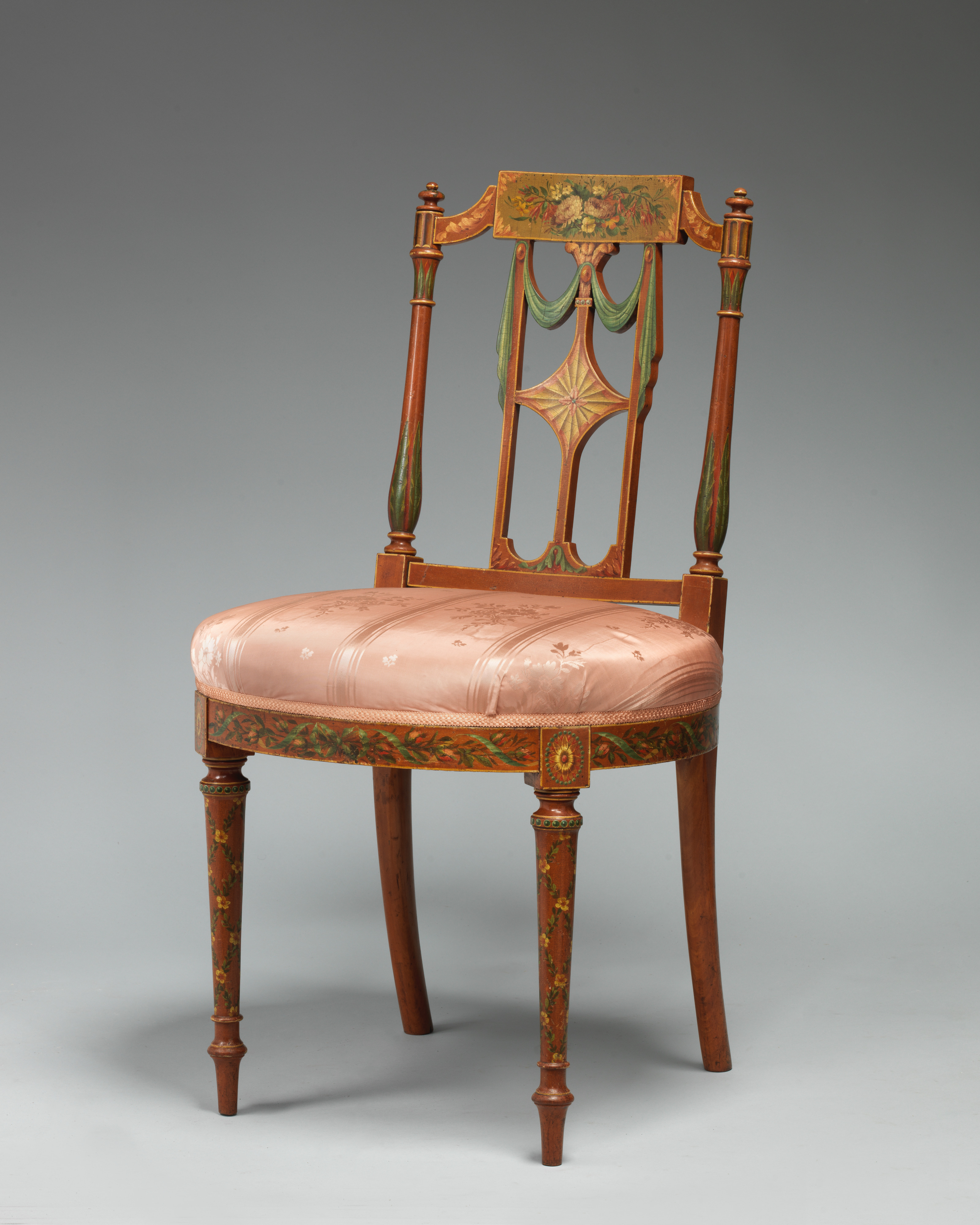
1 Top backrest panel
Visible condition Floral motifs in several colors are visible.
Further checks The photo does not establish their current condition or whether they have recently been repaired.
2 Seat fabric on the right side of the image
Visible condition Folds and lighter and darker areas are visible.
Further checks Whether the fabric is torn, and what causes the shading, have not been established.
3 Front seat frame
Visible condition A band of flower- and leaf-like motifs is visible.
Further checks The strength of its joints and the chair’s safety in use cannot be judged from this photograph.
The wording changes what the same photograph claims
Teaching example: unsupported claim
The seat fabric is torn and needs repair.
This is a deliberately incorrect writing example. The lines and shading at point 2 do not establish a tear or a need for repair, yet the sentence assumes both.
Improved: separate observation from unknowns
Folds and differences in shading are visible on the image-right seat fabric. Whether it is torn, and why it looks this way, cannot be established from this photograph.
Name the visible location and feature first, then state which judgments need further checks. The downloadable PDF uses the same distinction between observations and unknowns.
Start with these four fields
Subject
Chair · The Met object 29.119.4
Observation location
Image-right seat fabric · point 2
Visible condition
Folds and differences in shading
Further checks
Tears, cause and current condition unverified
These four fields help you prepare the wording. Transfer them to the maker’s Document title, Introduction / scope and Instructions / observations. Do not invent capture dates, locations or the object’s current condition.
Enter it in the actual workbench
Start this case, then use Choose / replace image for your own photograph. Leave the after photo empty for a single state; use Remove after photo if one is already present. Remove first photo keeps the caption and after photo, unlike deleting the whole step.
Use the four-field outline to edit the title and Instructions / observations. Check the subject’s edges with Fit · no cropping.
Compare the photo and caption in Review output, then save the PDF and project separately. Pair photographs only when their actual before/after relationship is verified.
Source and redistribution rights
The Metropolitan Museum of Art · Side chair (one of a pair), 29.119.4 · Fletcher Fund, 1929 · CC0 1.0. The source does not identify an individual photographer or maker. The source license permits including the photo in downloads, projects and PDFs. The numbers and descriptions were added separately by PDF Desk, not as a museum condition assessment or endorsement.
Fit shows the entire source even when blank space remains. Fill covers the print frame by hiding source edges. It can make differently sized subjects appear equally large; do not use it as a dimensional comparison.
If the pair is reversed or cropped
Check the Before and After inputs. The PDF places Before on the left and After on the right. Switch back to Fit to show cropped edges. JPEG EXIF orientations 1–8 are normalized; the author must still check the intended orientation and pairing.
Open the photo record in a separate reader and confirm each caption identifies the correct subject. Projects include input photographs; review EXIF and location information before sharing. Save the PDF and project separately.
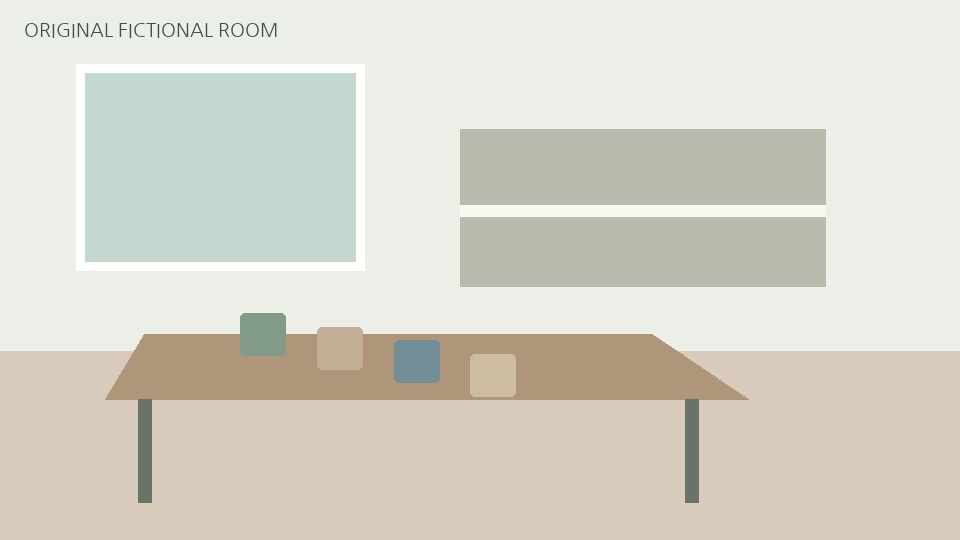
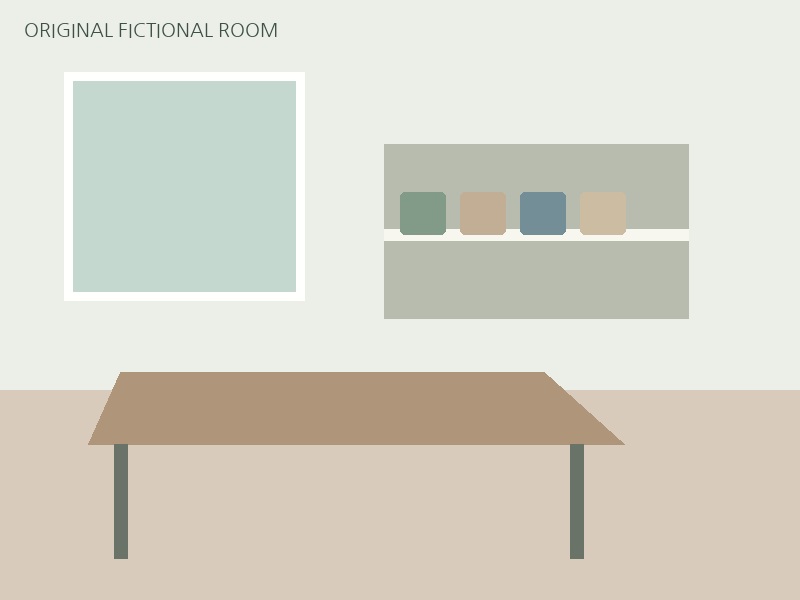
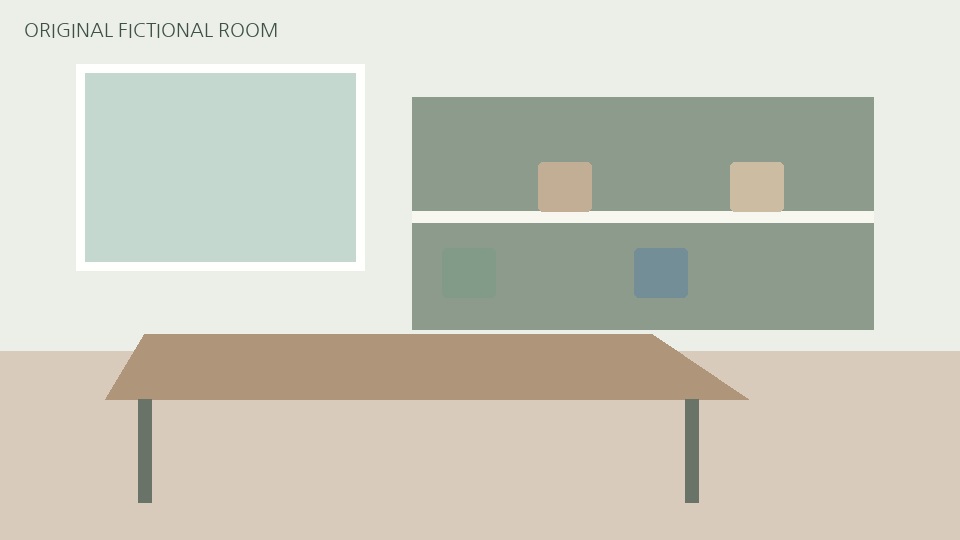
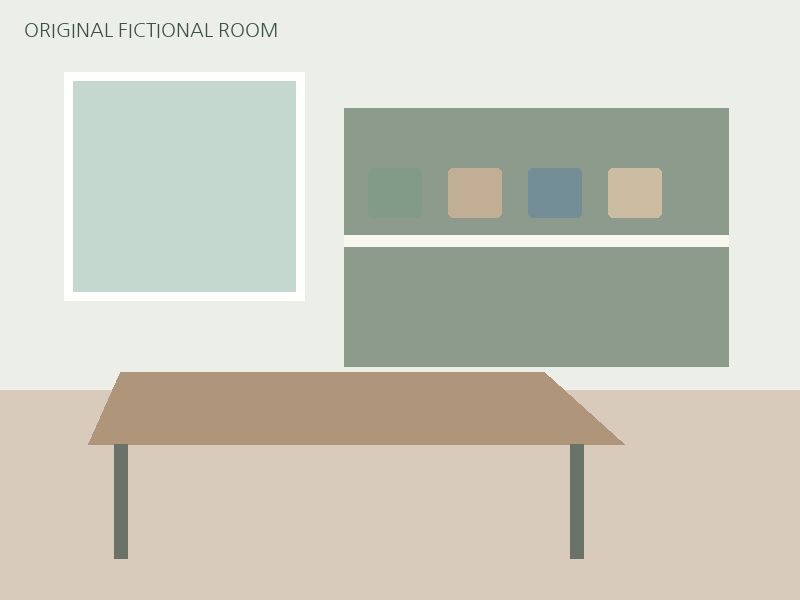
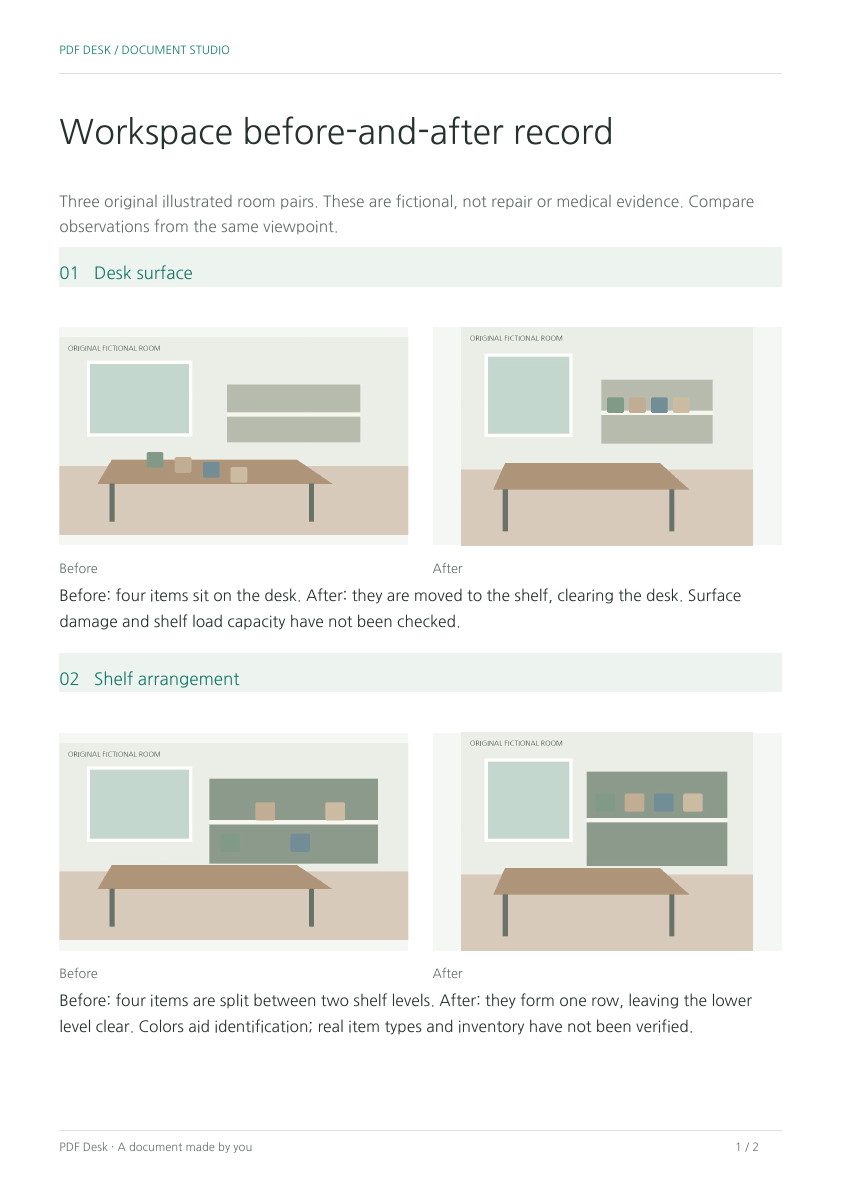
The desk, shelf and floor illustrations are fictional before/after examples. They differ from the real museum photograph above and do not establish construction, repair or safety improvements.
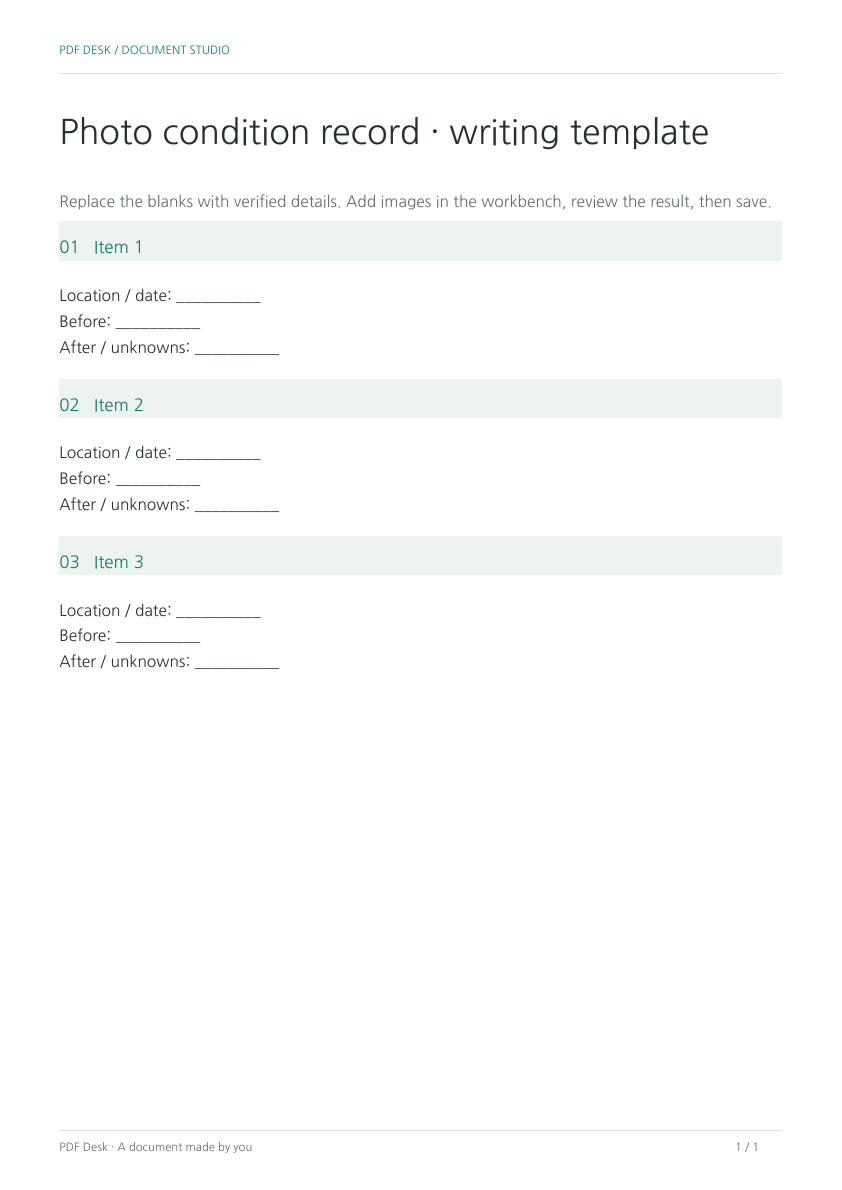
The blank photo record is a printable reference, not an AcroForm. Open its project to edit photographs and observations. Leave the after image empty for a single-state record.
Original inputs for the fictional example
Verification and limits
JPEGs that need no orientation correction retain their source compression stream; EXIF-rotated JPEGs are converted to upright PNGs. Whole pages are not rasterized. The tool does not read image text or capture times. EXIF is not copied into report metadata, but original JPEG EXIF may remain inside the embedded image stream. Remove sensitive location metadata before import.
Keep a project if you will edit this document again
The PDF is the result to share. A .pdfdeskproject file reopens images, text and editing state. There is no automatic saving or account storage.
Choose Save project in the workbench, then confirm that the file exists in your download folder.
Next time, choose Reopen project on the start screen and select the saved .pdfdeskproject. If a document is already open, use Open project.
Check the title, images and instructions before editing, then save a new PDF and project separately. A project can contain input images and the original PDF; review its contents before sharing.
 Use this exampleView completed PDFDownload project
 Open blank template in workbenchDownload blank PDFDownload blank project