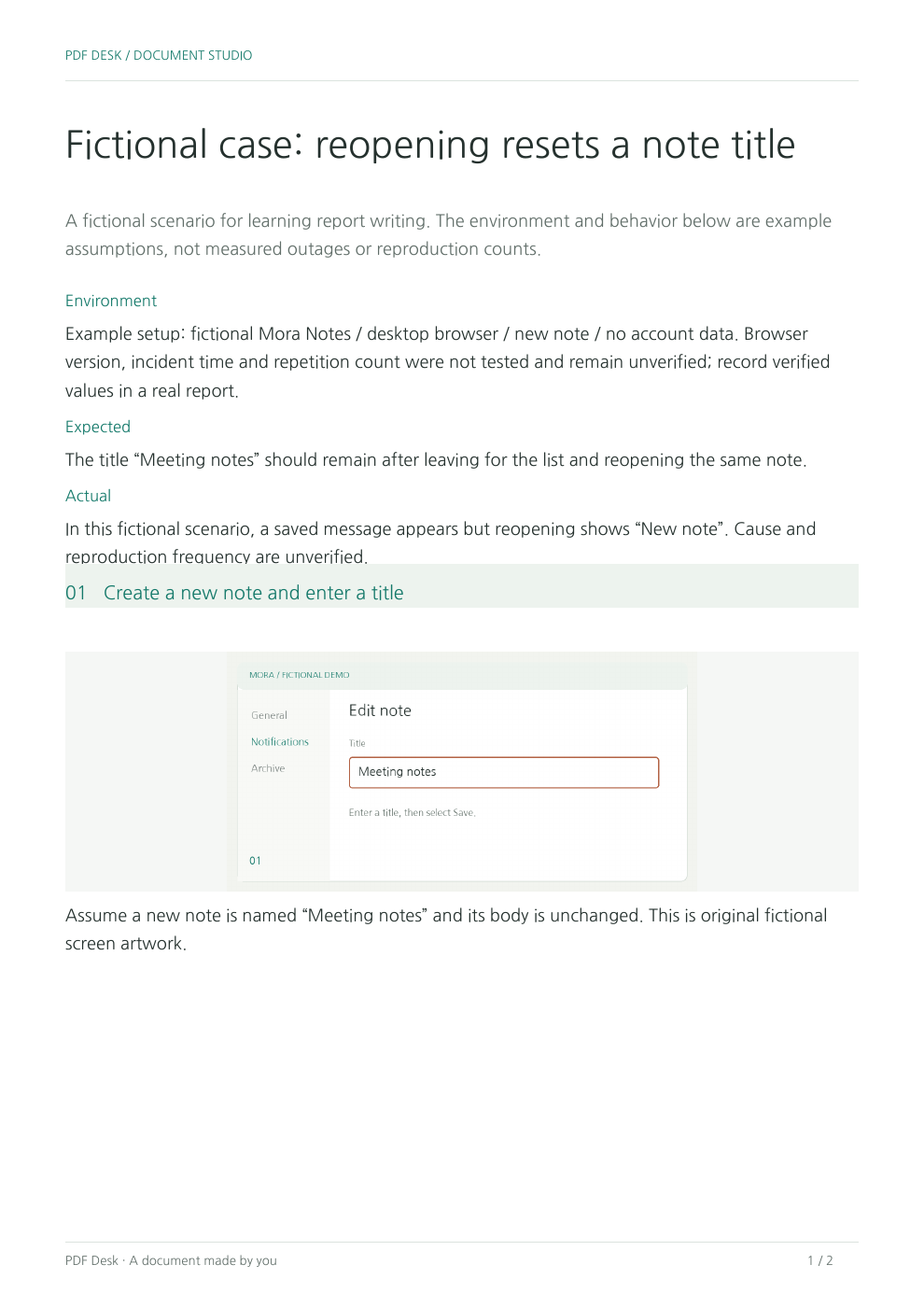
Record the environment, your actions and the difference between expected and observed behavior. Separating facts from hypotheses makes an issue easier to reproduce.
ACTUAL FINISHED RESULT
Fix case: opening another file discarded the current draft
This is a controlled reproduction against PDF Desk itself. It documents corrected historical behavior, not a customer complaint or loss. Keep it separate from the fictional Mora report below.
When to use it
Use it for bug reports or interface reviews another person needs to check. Distinguish verified facts, assumptions and unknowns.
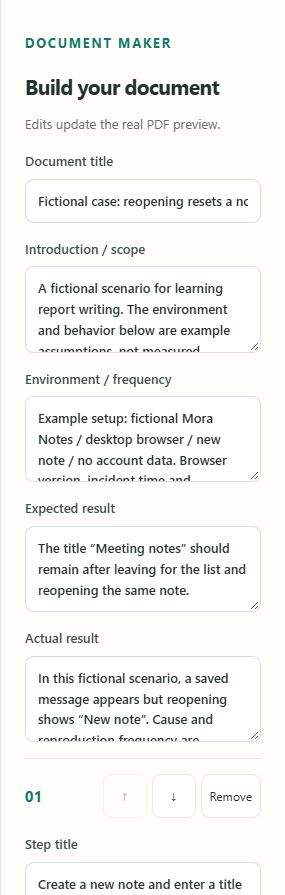
Name the observed symptom in the title and its impact in the introduction. Environment / frequency should distinguish OS, browser, version, conditions and attempts. Expected result states the requirement; Actual result records observations. Use one action per step with its corresponding screen. Leave unknown environment details explicitly unverified.
Edit and check it in the workbench
Start this case opens the controlled-test report shown in the preview. For writing practice, add “writing practice” to Document title to distinguish your copy from the original test record.
Read Environment / frequency, Expected result and Actual result to see what each records. When adapting it to your own issue, do not reuse the historical test date, versions or attempt counts as if you observed them.
Use Choose / replace image for each step, then update its title and Instructions / observations together. Check the caption against the image so replacing a capture does not leave unrelated evidence.
In Review output, read the title, environment, expected/actual results and every capture. Choose Download checked PDF, then confirm the same content in a separate PDF reader.
Return to editing and choose Save project too. Use Open project on the downloaded project and check the title, captions and images. Downloading a PDF alone does not save the editable project.
Weak: “The server is broken and saving fails.” Better: “I renamed a new note and saved it. After the confirmation, reopening the same note resets the title. This is a fictional scenario; actual reproduction frequency, occurrence time and app/browser versions are unverified.” Observations are evidence; causes require investigation. Include the time, environment and reproduction rate without assuming untested server or network failures.
Adapting it for a screen review
Use Expected result for the interface requirement and Actual result for the observed difference. Distinguish preferences from reproducible defects, recording location, zoom and comparison screens. Explain how the observed difference affects the requirement.
If the reproduction grows long
Keep one action per step and separate expected from observed results. Generated PDFs are not sent to a support team. Review and download the file before sharing it yourself.
Check the result and keep the PDF and project
Before sending the report PDF, confirm its environment and expected/actual sections in a separate reader. Editable projects include the screenshots, so exclude sensitive material. This tool does not send the report to a support team.
Remove emails, order numbers and access tokens from source images before importing them. A rectangle or new text box is not secure redaction. Prefer a fictional reproducible example over sharing a confidential original.
Start a new issue with the blank template
The blank report PDF has no AcroForm fields. Its project lets you enter the environment, expected/actual results and reproduction steps; leave unchecked facts explicitly unverified.
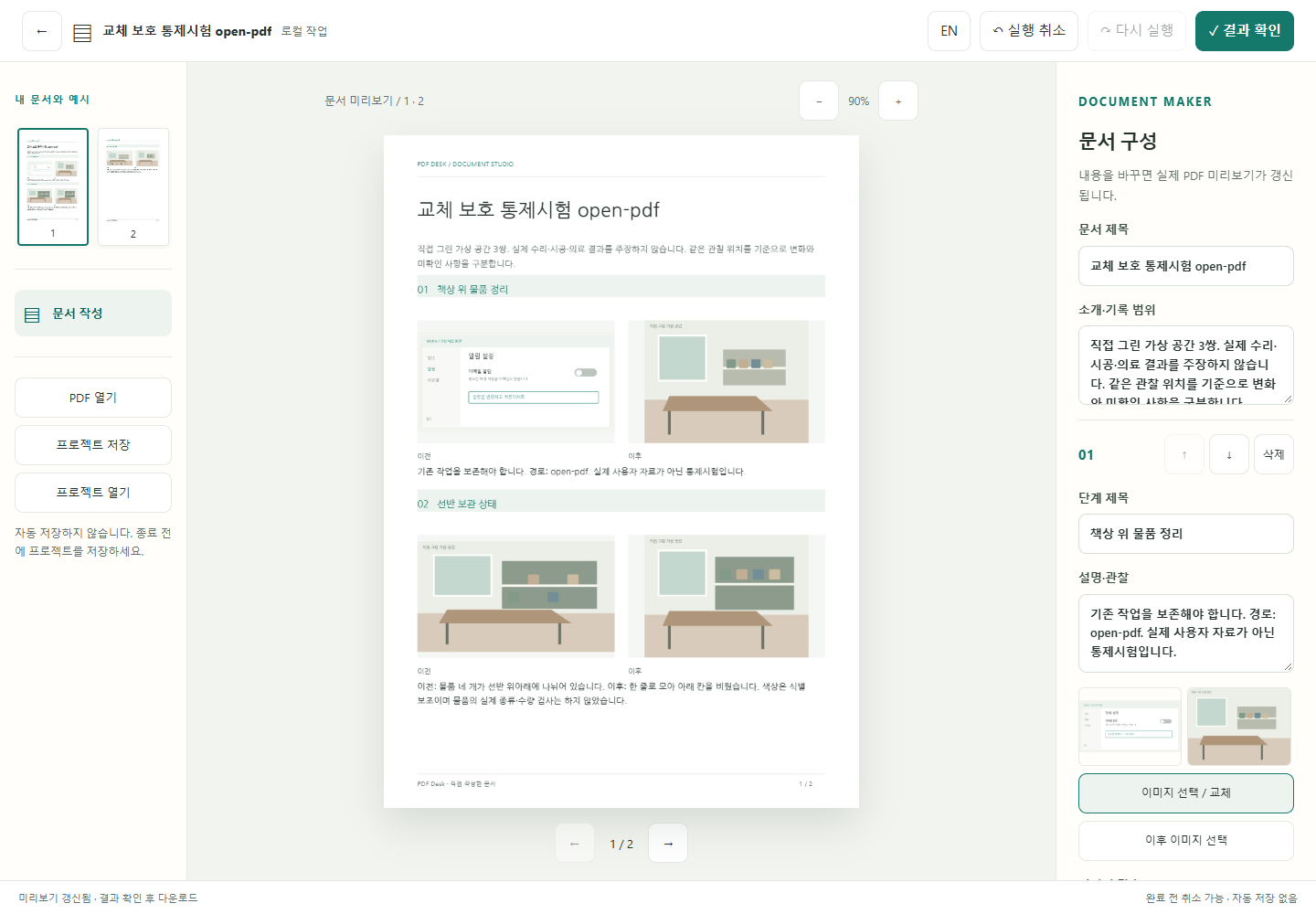
After changing the title, caption and image, we opened another file without saving the project. Before the fix, all three paths replaced the draft without confirmation and disabled Undo. After the fix, canceling the replacement confirmation retained the draft.
Replacement path
Observed before the fix
Same path after the fix
Open PDF
1 attempt: no confirmation / draft replaced / Undo disabled
Cancel in confirmation → draft and Undo preserved. Explicit continuation → new file opens.
Open project
1 attempt: no confirmation / draft replaced / Undo disabled
Cancel in confirmation → draft and Undo preserved. Explicit continuation → new file opens.
Drop a PDF onto the work area
1 attempt: no confirmation / draft replaced / Undo disabled
Cancel in confirmation → draft and Undo preserved. Explicit continuation → new file opens.
Before: the other PDF opens immediately
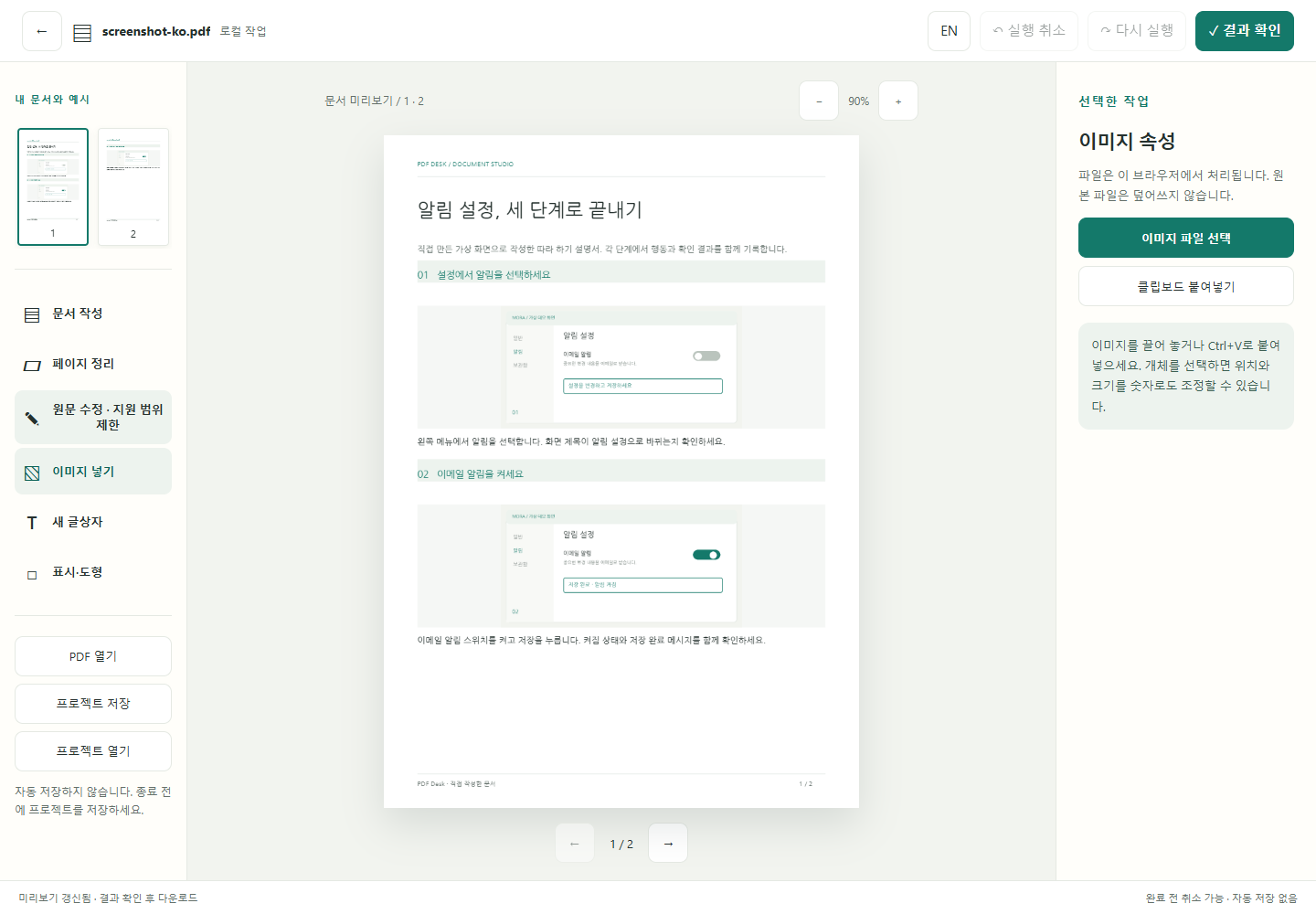
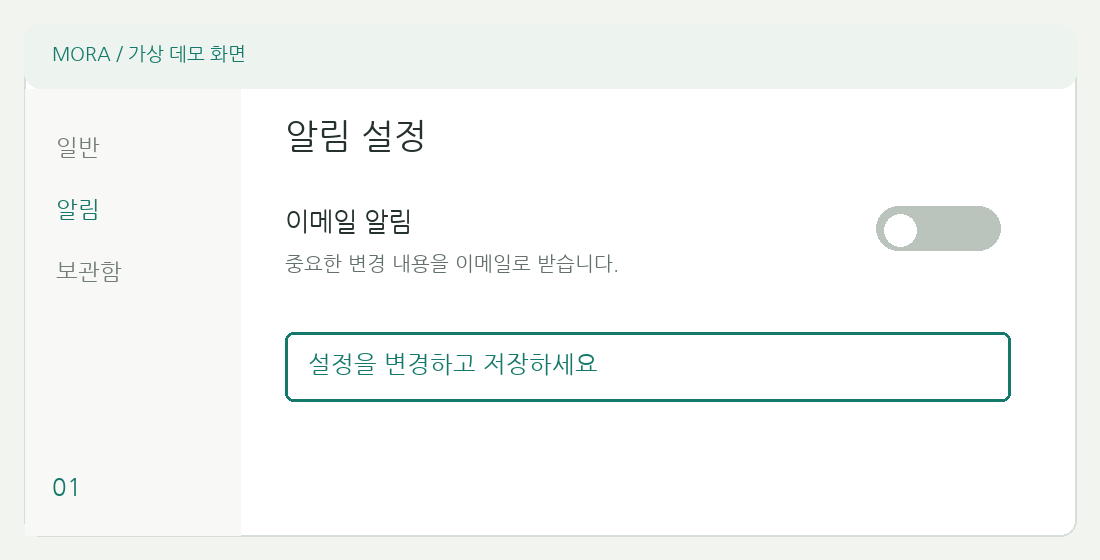
The draft titled “교체 보호 통제시험 open-pdf” was replaced by screenshot-ko.pdf. This is a crop of the actual filename area. Absence of a warning and disabled Undo were recorded from runtime dialogs and state. Full original capture ↗
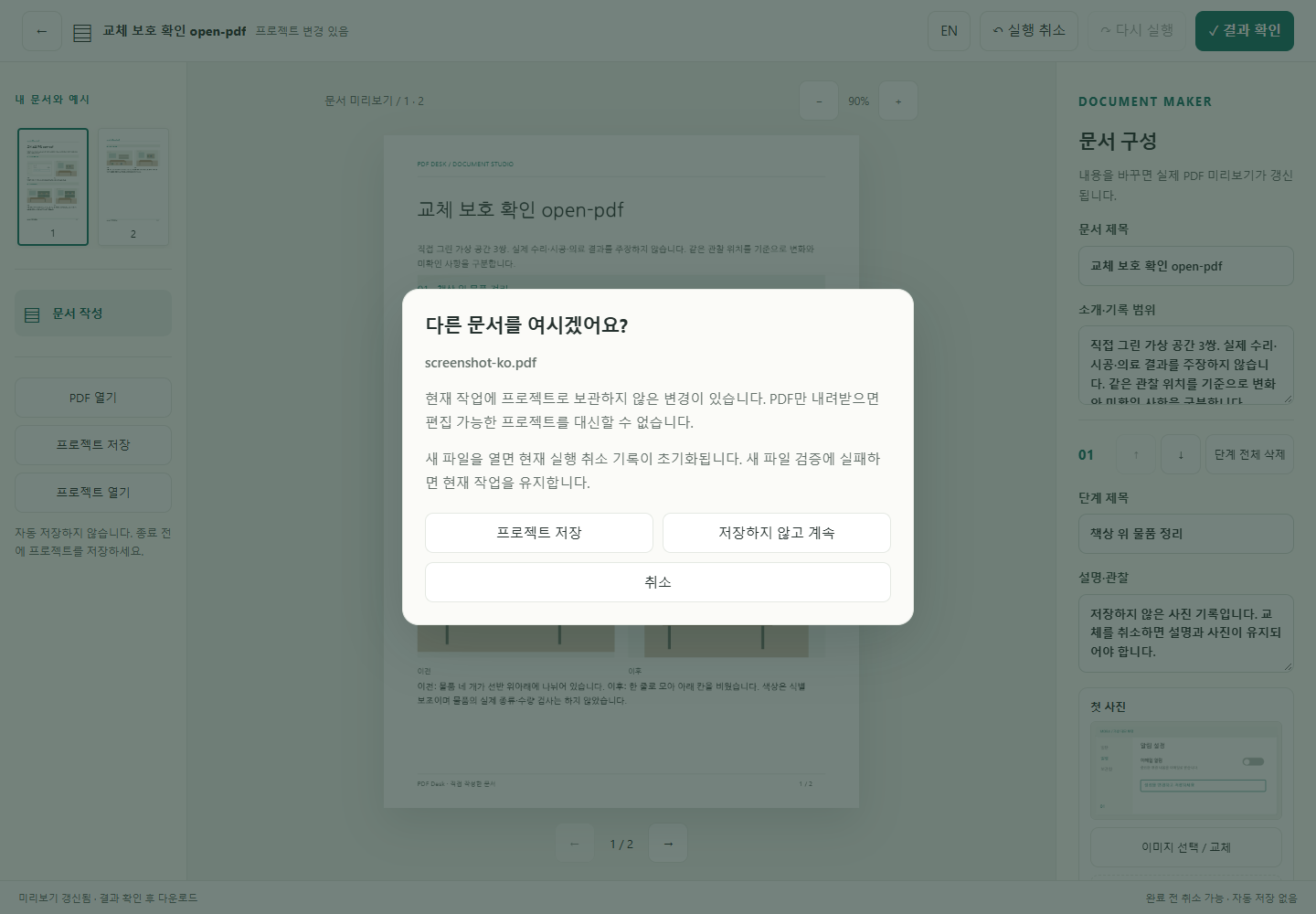
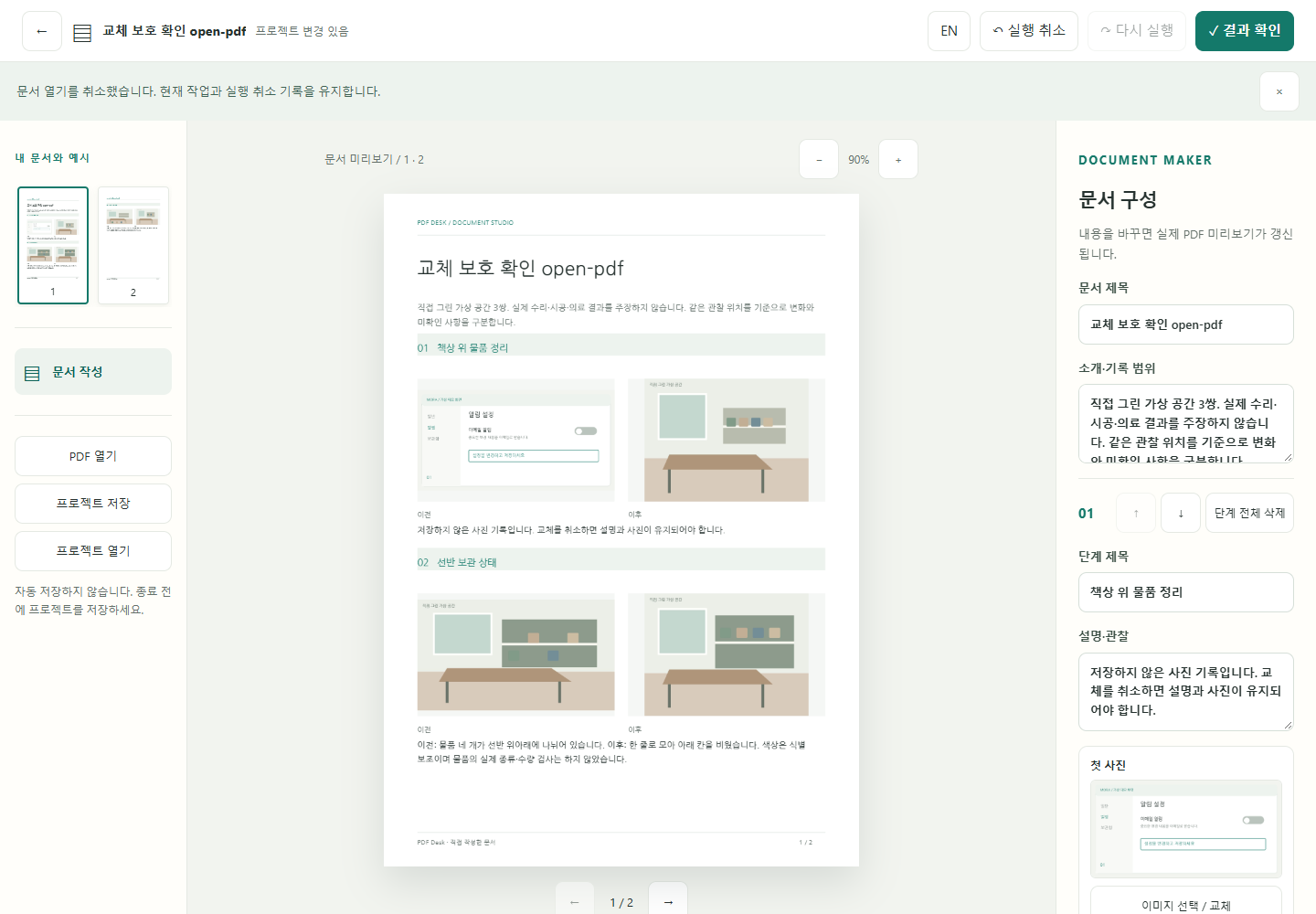
After: choose what to do with the current draft
This enlarged crop shows the actual confirmation. Save project, continue without saving and cancel are separate choices. Requesting a download does not discard the draft. The same test checked that cancel preserved the title, caption, image and Undo. Full original capture ↗
Observed problem
The leave-page warning did not appear for these three in-app file-opening paths. Undo could not recover the unsaved editing state.
Changed behavior
Validation of the next file is separated from the replacement decision. Choosing Save project alone does not replace the draft; cancel or a read failure retains it.
What to report
Instead of “my work disappeared”, record the fields changed, replacement path, warning and Undo state. Repeat the same conditions after the fix and distinguish the results.
These are path-specific observations, not a failure rate for all browsers or files. This is not autosave. A PDF is the reading output; keep a separate project for source images and editable inputs. Starting a download does not let the web app verify that the file has been saved to disk.
Detailed test environment, reproduction steps and source records
Test environment and execution scope
2026-10-24 · Windows 10.0.26300 x64 · Chrome 155.0.8059.80 · Playwright automated browser (headless), 1440×1000 viewport. One baseline attempt per path. This is not a physical keyboard or phone test. The post-fix environment and exact UTC times are retained in the observation records.
Repeat the same conditions
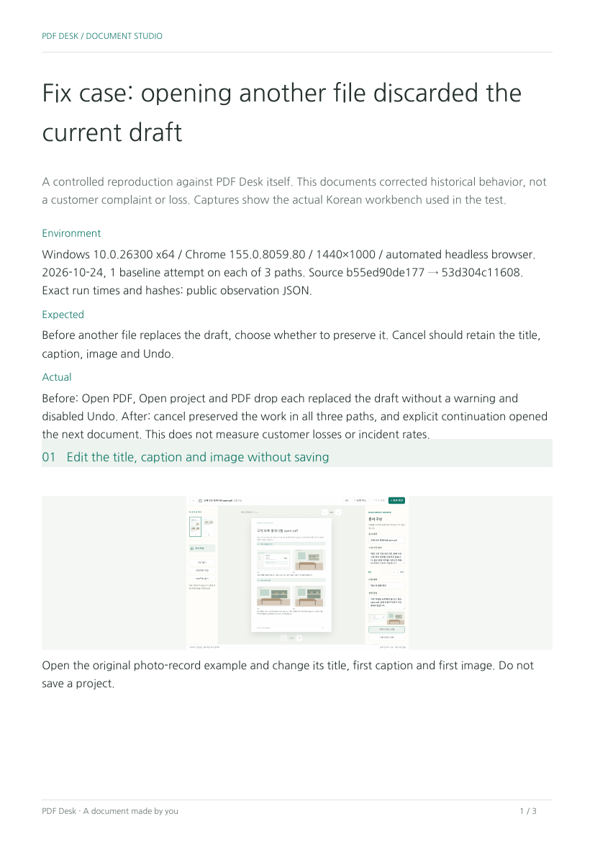
Open the original photo-record example and change its title, first caption and first image. Do not save a project.
Choose Open PDF and select the provided screenshot-ko.pdf. Test Open project and PDF drag-and-drop separately in fresh sessions.
Before the fix, we recorded that the document changed and Undo became disabled. In the current version, cancel the confirmation and check that the title, caption, image and Undo remain.
Choose Continue without saving only when you intend to replace the draft. To keep editable work, choose Save project, check the downloaded file and then decide whether to replace it.
Source: apps/workbench/main.jsx SHA-256 b55ed90de177… (before) → 53d304c11608… (tested after fix). Full hashes and actual times are in the JSON. Images, screens and documents are original test materials without personal records.
Additional practice: an incomplete and improved fictional report
This comparison uses a fictional Mora notes-app scenario to teach report writing. It is not an observed outage, browser-version test or measured reproduction count, and is separate from the controlled PDF Desk case above.
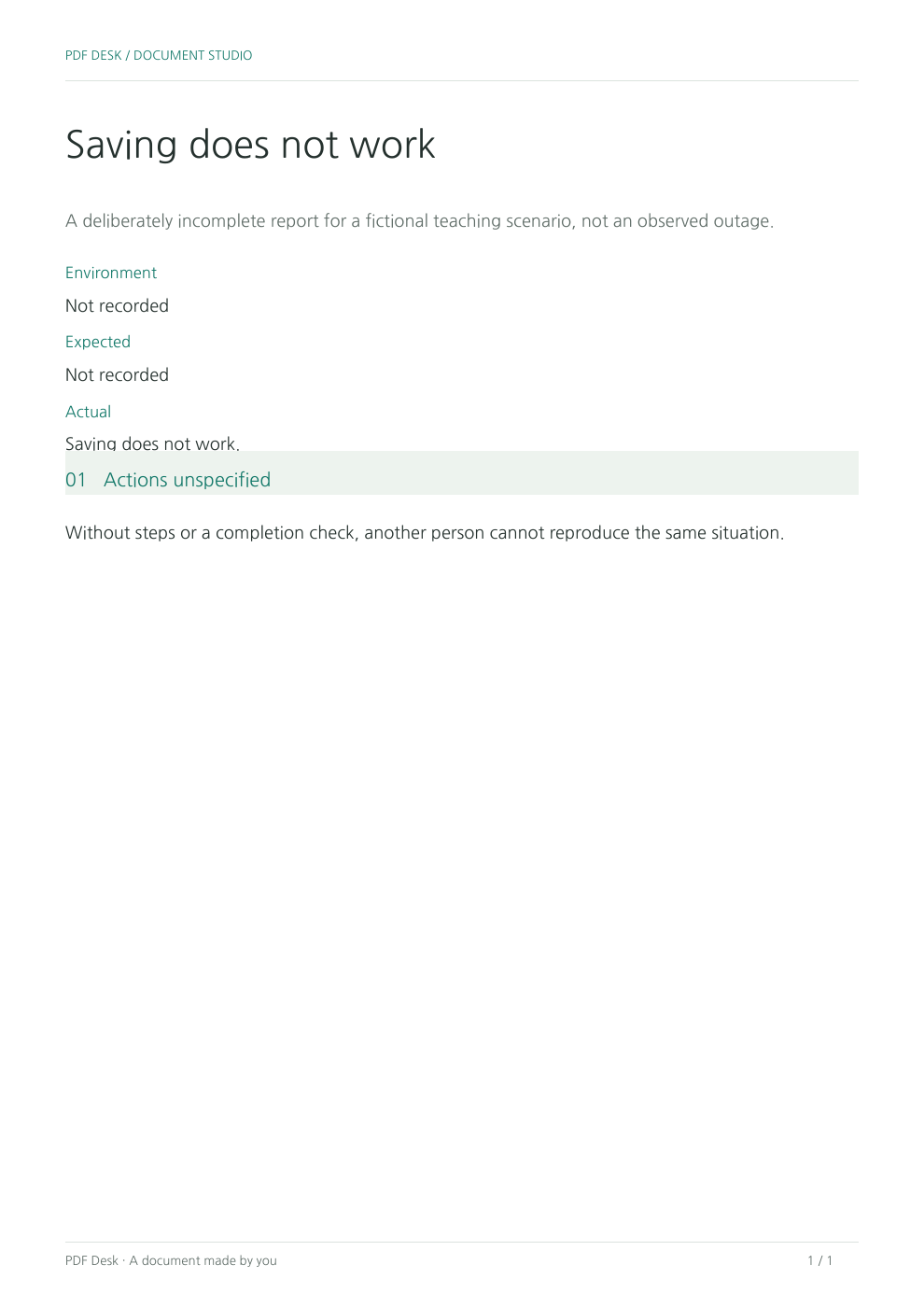
Weak example: Saving does not work
Missing setup, actions and expected behavior make the situation hard to reproduce. This is teaching material.
Fictional app, desktop, new note. Untested version/count explicitly unverified.
A reader knows the assumed setup and which facts still need checking.
Steps
Saving does not work
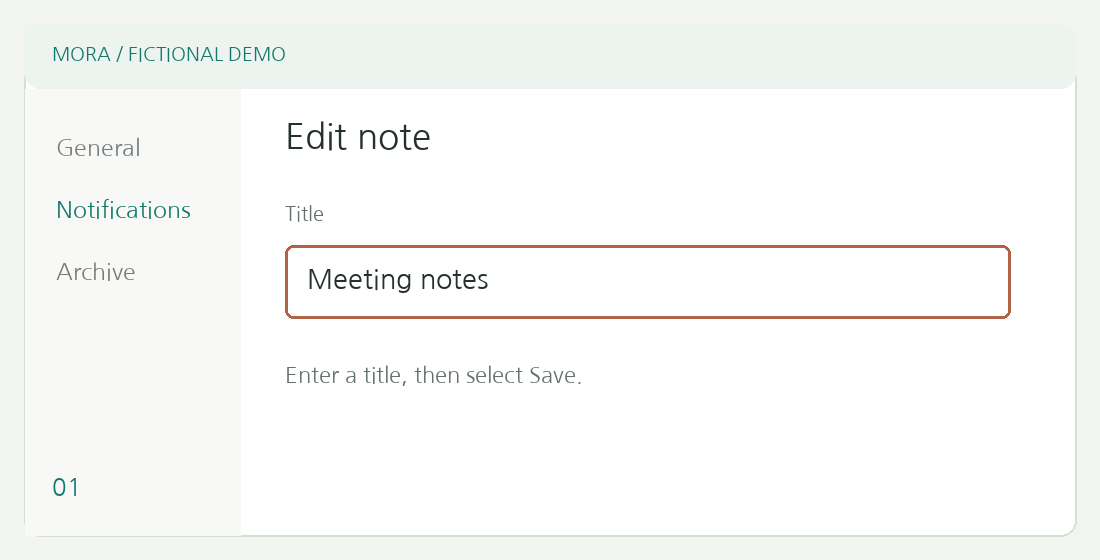
Create note → rename → save → return to list → reopen the same note
This narrows down the failing action and gives one action per step.
Expected / actual
Not separated
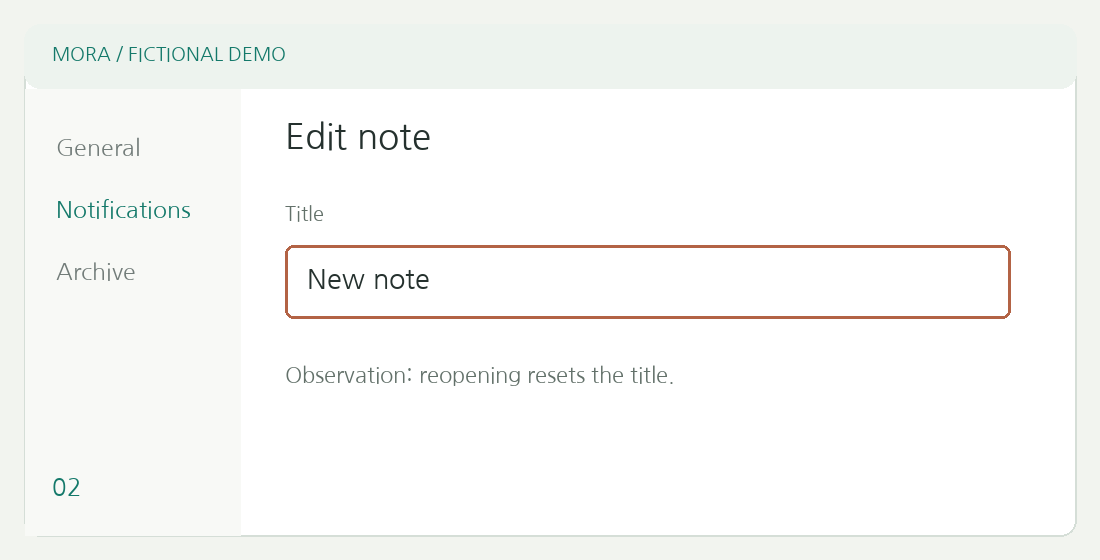
Expected: title persists / fictional actual: title resets
The normal criterion and difference are explicit without inventing a cause or frequency.
Evidence
Missing
Two original fictional screens with captions
Learn the reporting structure without sharing customer records.
Input screen for the fictional comparison
This screen places the table’s environment, expected result and actual result in separate fields. Keep the fictional-scenario label when opening this material and leave unchecked facts unverified. Editing, reviewing and saving follow the representative-report steps above.
Additional materials: the basic fictional report and original illustrations
This basic report uses the same fictional note issue. Untested environment details, incident time and reproduction counts are marked unverified; do not present it as evidence of a real outage.
Use the improved report above for writing practice. These basic files are reference material for the same fictional scenario, not a separate workflow to choose.
This example has its own scenario, input images and editable project. The tool does not diagnose causes or send reports to a support team. The author remains responsible for checking observations.
Keep a project if you will edit this document again
The PDF is the result to share. A .pdfdeskproject file reopens images, text and editing state. There is no automatic saving or account storage.
Choose Save project in the workbench, then confirm that the file exists in your download folder.
Next time, choose Reopen project on the start screen and select the saved .pdfdeskproject. If a document is already open, use Open project.
Check the title, images and instructions before editing, then save a new PDF and project separately. A project can contain input images and the original PDF; review its contents before sharing.