
Write instructions people can follow
Weak: “Click here.”
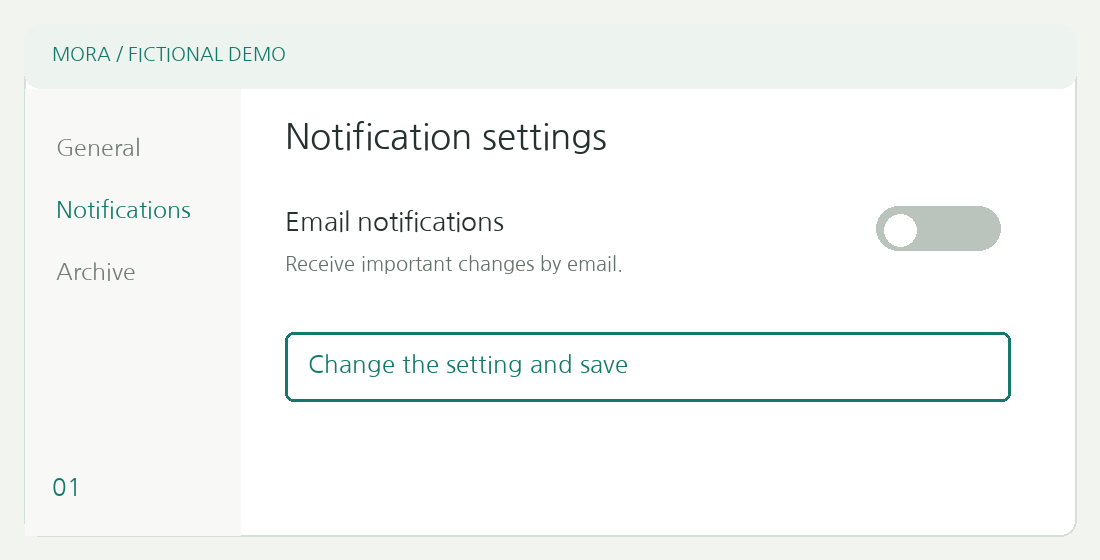
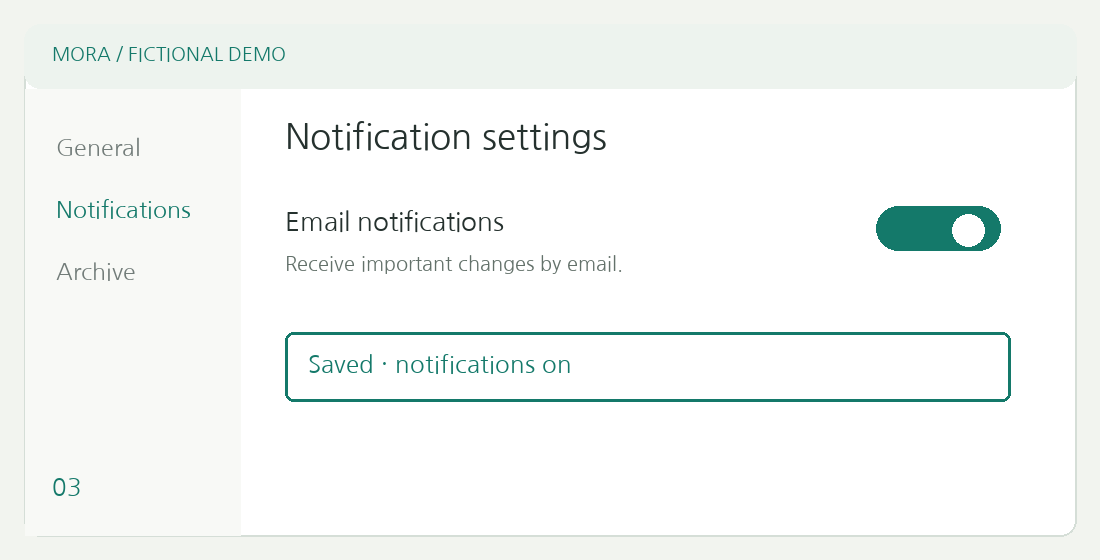
Better: “Choose Notifications in the left menu, then confirm the heading changes to Notification settings.”
Name the location and action, then describe the visible result. Avoid relying on cursor position or color alone; the guide should still make sense in a monochrome printout.
What to enter in each field
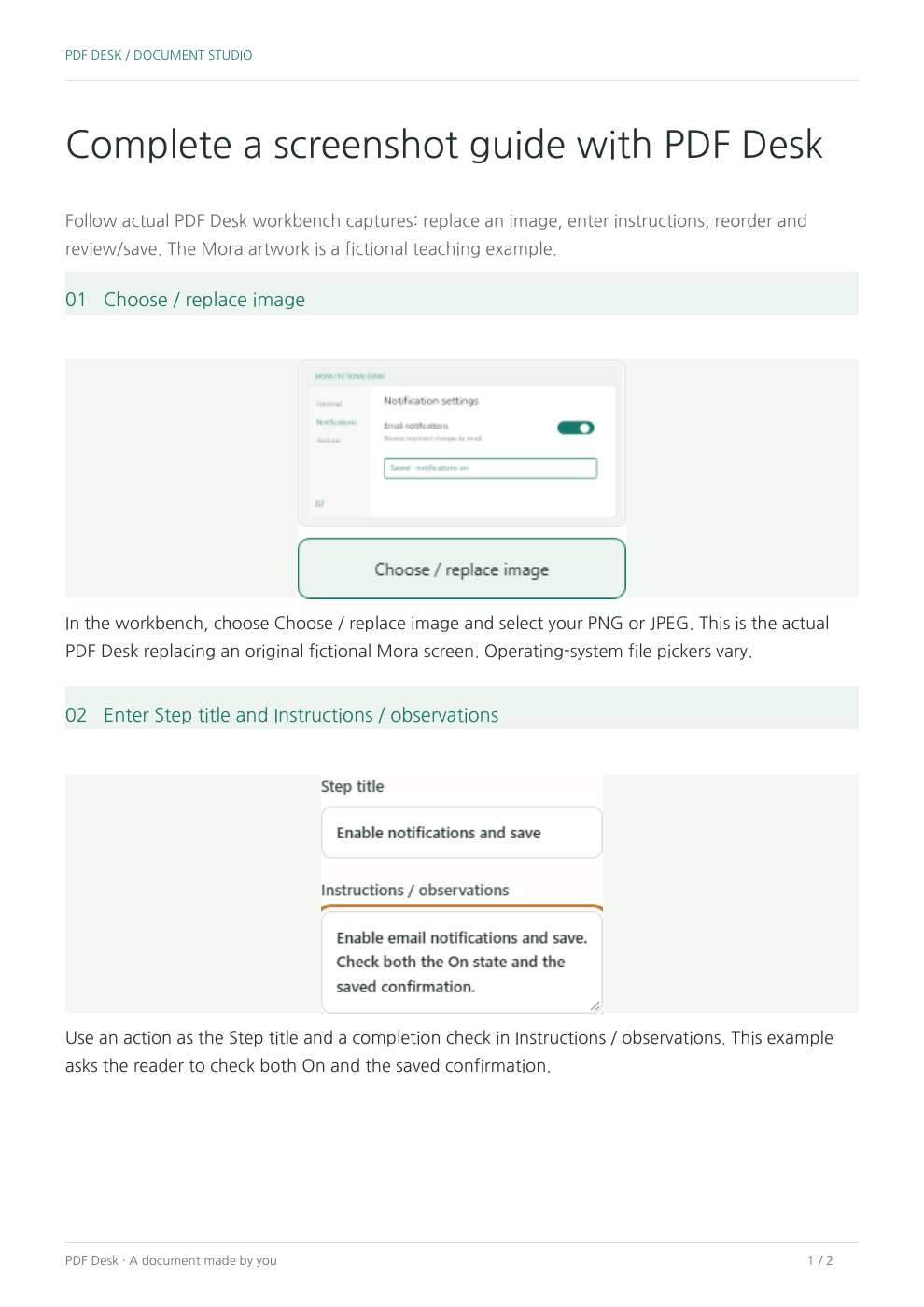
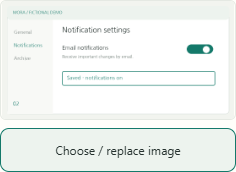
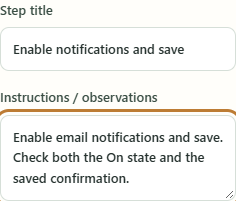
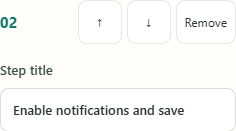
Use the document title for the task to complete and Introduction / scope for the audience and starting conditions. Give each step one action; use Instructions / observations for location and a completion check. Choose / replace image changes that step’s source PNG or JPEG. Fit retains all edges. Order buttons change the actual PDF sequence.
Adapting it for a handoff
Use the introduction for current status, the next owner’s tasks and unfinished work to turn the guide into a handoff record. Each step should include a screen and a check the recipient can perform. Leave out access passwords and customer data.
Long captions and small screens
Text wraps automatically and long steps may continue on the next page. Capture only the relevant settings to keep details readable on a phone. Fit is the default image mode, so edges are not silently cropped.
If screenshot text is too small
Crop the input to the relevant settings instead of fitting more steps onto a page. Captions are searchable, but screenshot pixels are not processed with OCR.
Finished output and editable materials
Share the guide PDF with its reader. Keep the project for the ordered captures and instructions. Check text and step order in a separate reader before sharing; use Reopen project for later edits.
Practice with a blank template or another example
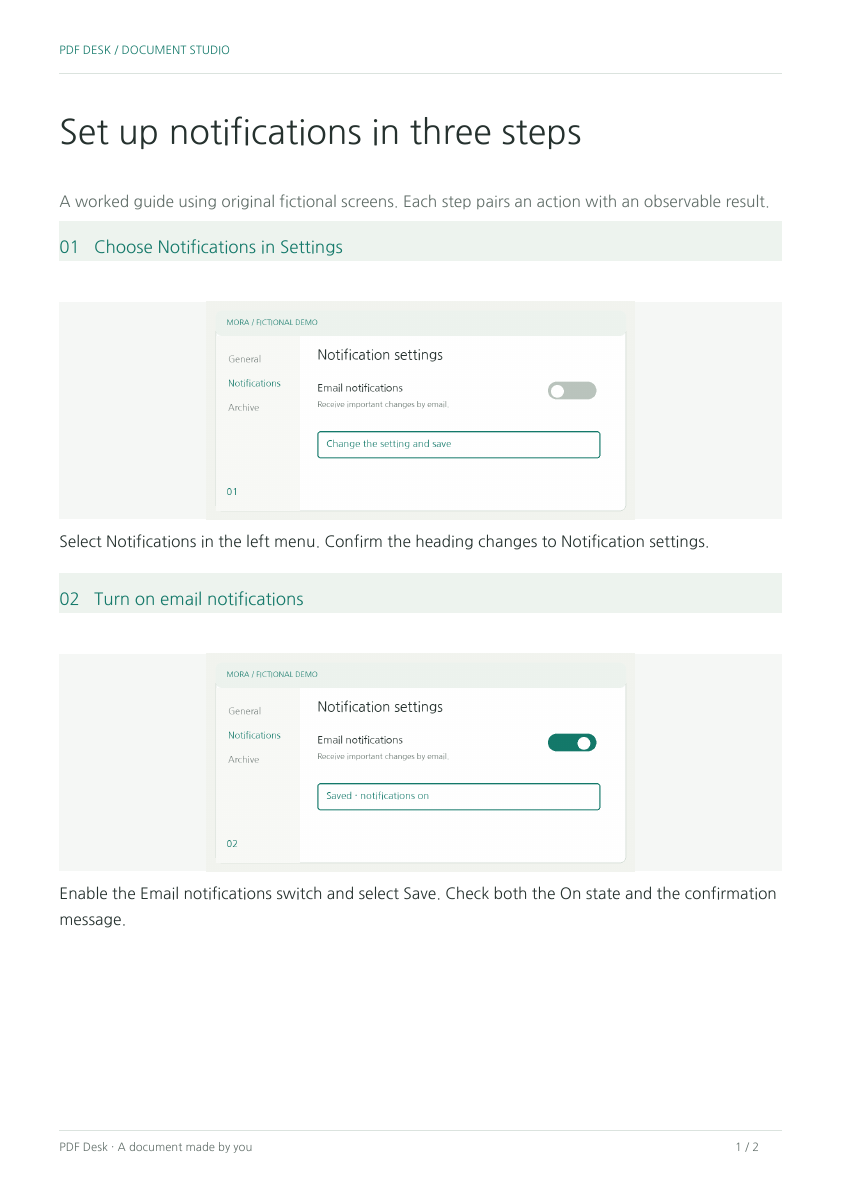
Fictional Mora screen example
 Use this exampleView completed PDFDownload project
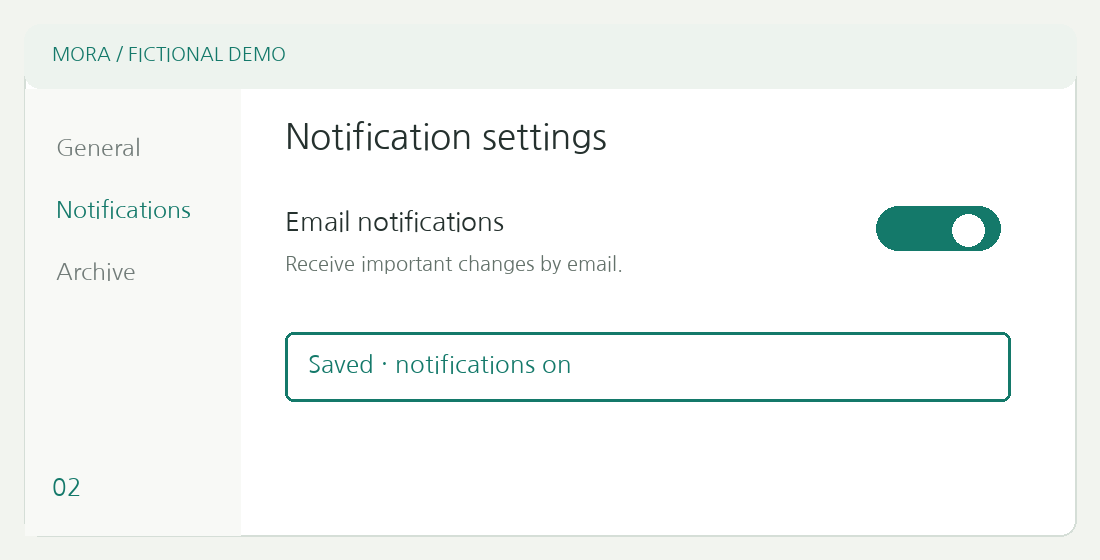
The additional Mora example uses original fictional app screens. Unlike the actual PDF Desk captures above, these are illustrations for practicing image and instruction changes.
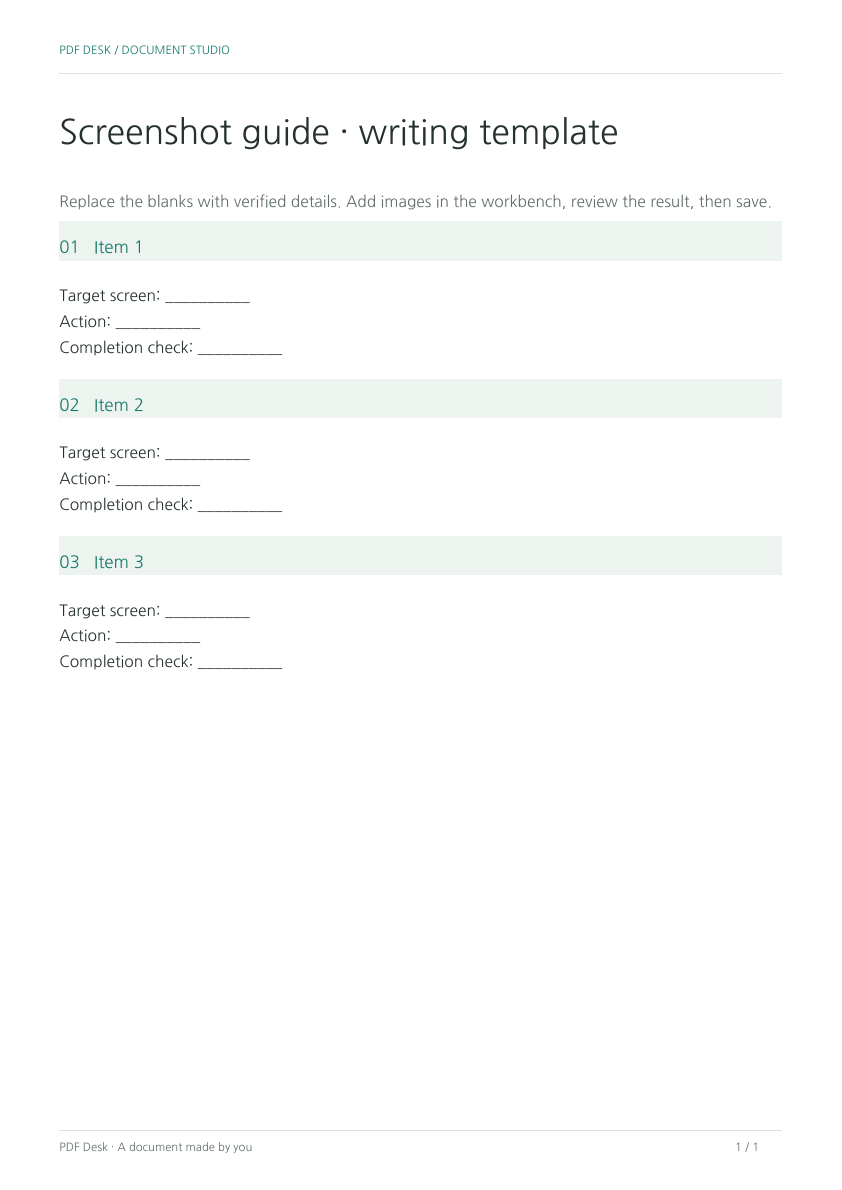
Start with a blank template
 Open blank template in workbenchDownload blank PDFDownload blank project
The blank guide PDF is a printable reference, not an AcroForm. Open the blank project to insert screenshots and write your own ordered instructions.
Original inputs for the fictional example
Verification and limits
The completed example was generated with the shared PDF Desk engine. Text inside a screenshot remains part of the image, not editable PDF text. Captions are searchable text. The document does not reproduce interactive buttons.